How to Create Opening Books
Noctie’s interactive opening books let you practice your repertoire through gameplay. Not a Noctie member yet? Sign up, pick a plan, and follow this guide to get started!
Quick note: Opening books in Noctie are created by importing a pre-made PGN file. You’ll need to create or source the PGN outside of Noctie before importing it.
📺 Prefer video? Click here for a video tutorial.
This guide covers the web version of Noctie. The process is similar on the mobile and tablet apps.
Step 1: Opening Books Page
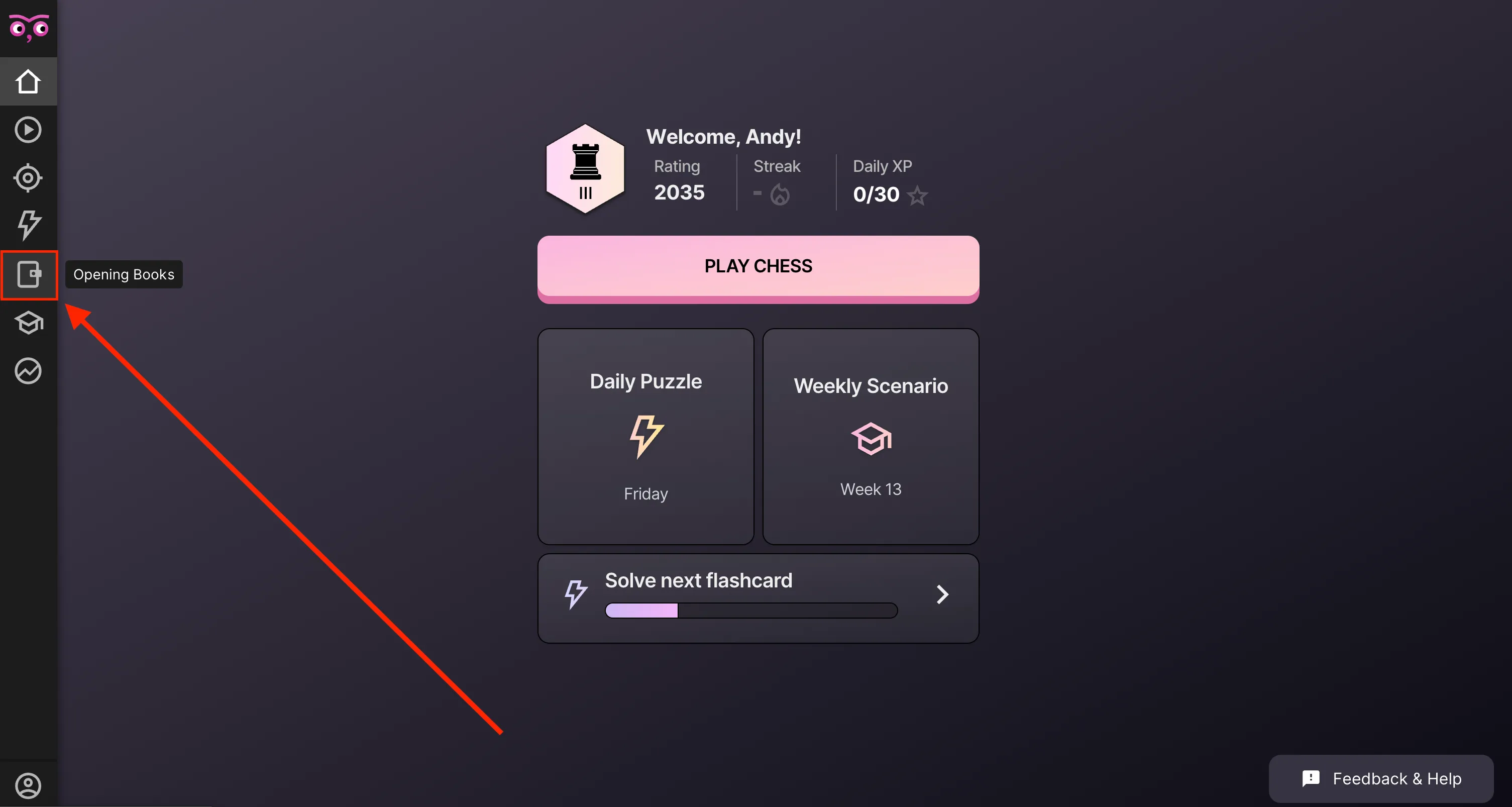
From the home screen, click the book icon in the left menu to open the Opening Books page.
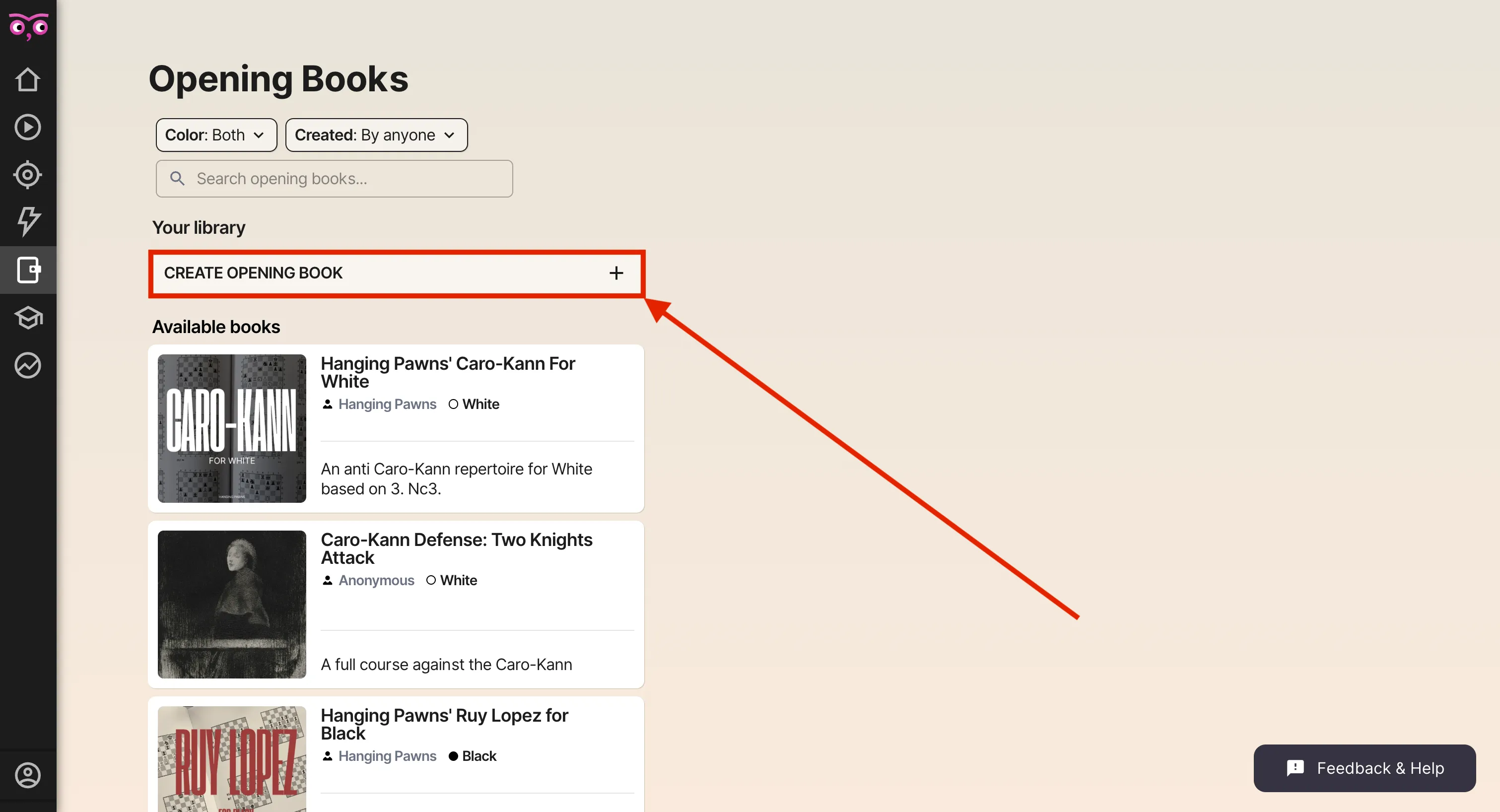
Once there, press “CREATE OPENING BOOK”.
Step 2: Import PGN File
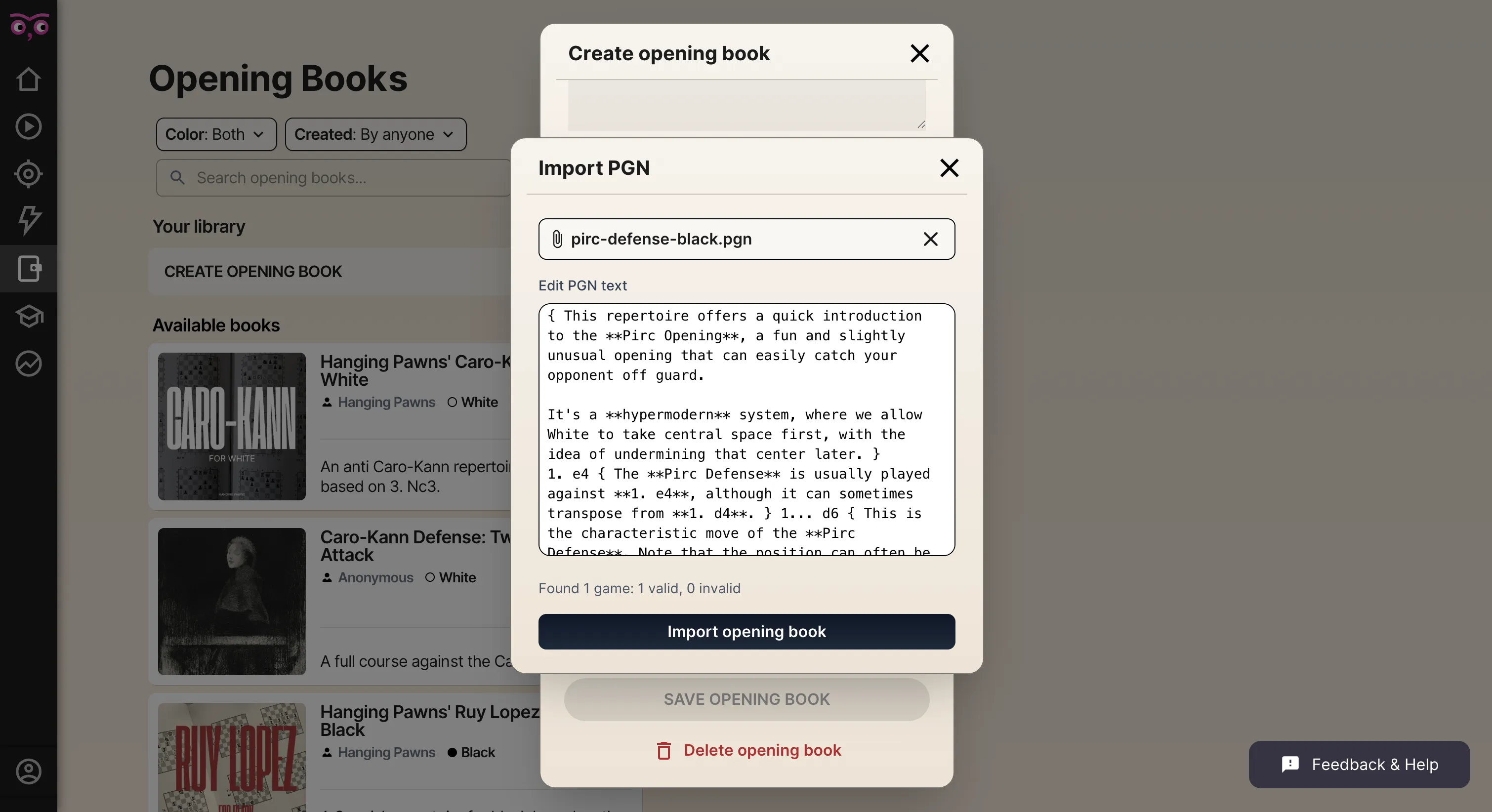
Scroll down and press “IMPORT / EDIT PGN”. Import your PGN by uploading the file or pasting it into the text box.
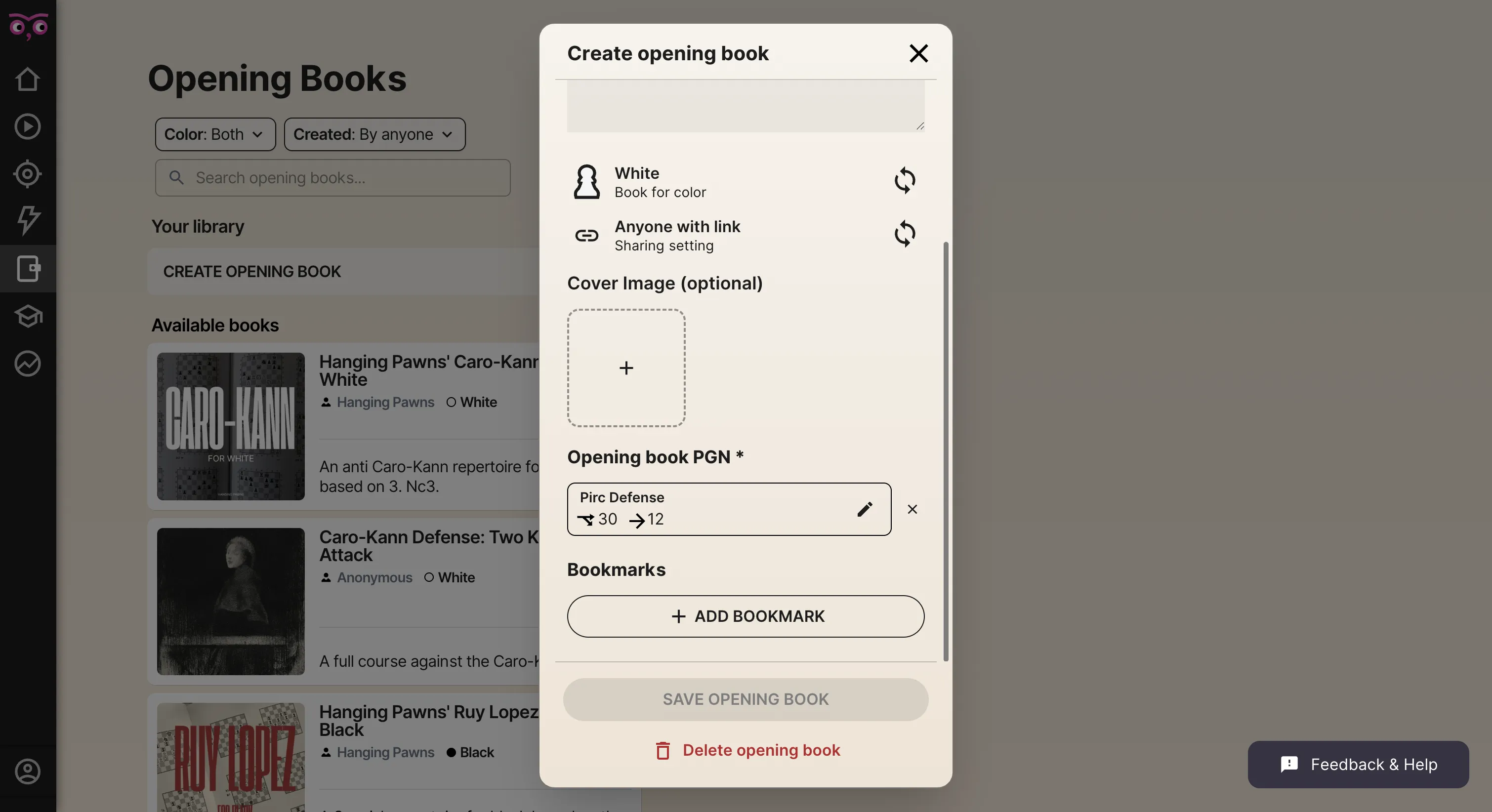
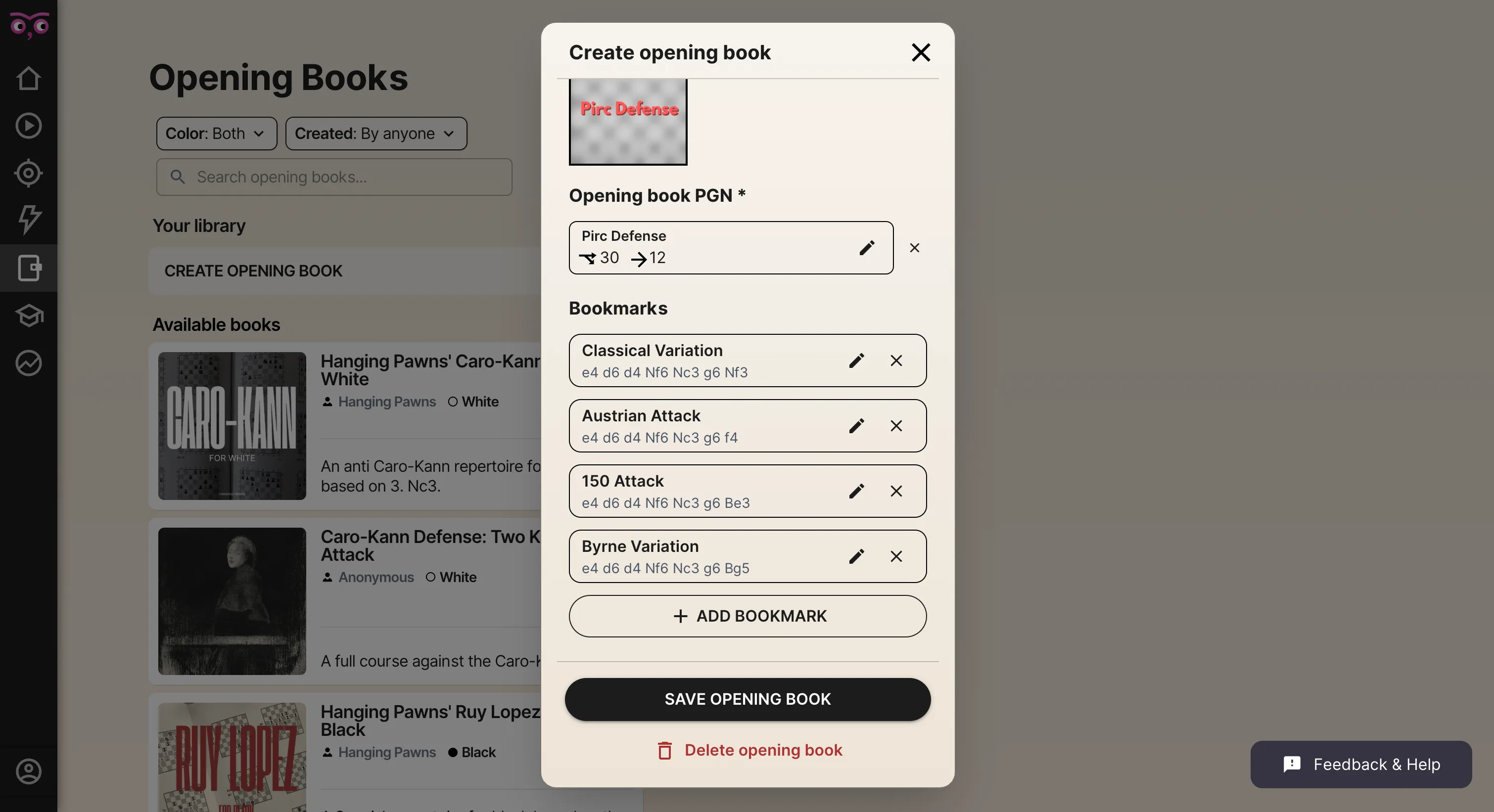
Once imported, Noctie automatically identifies the opening and displays the total number of variations (30 here) and maximum depth (12 here) of the file.
Step 3: Details and Settings
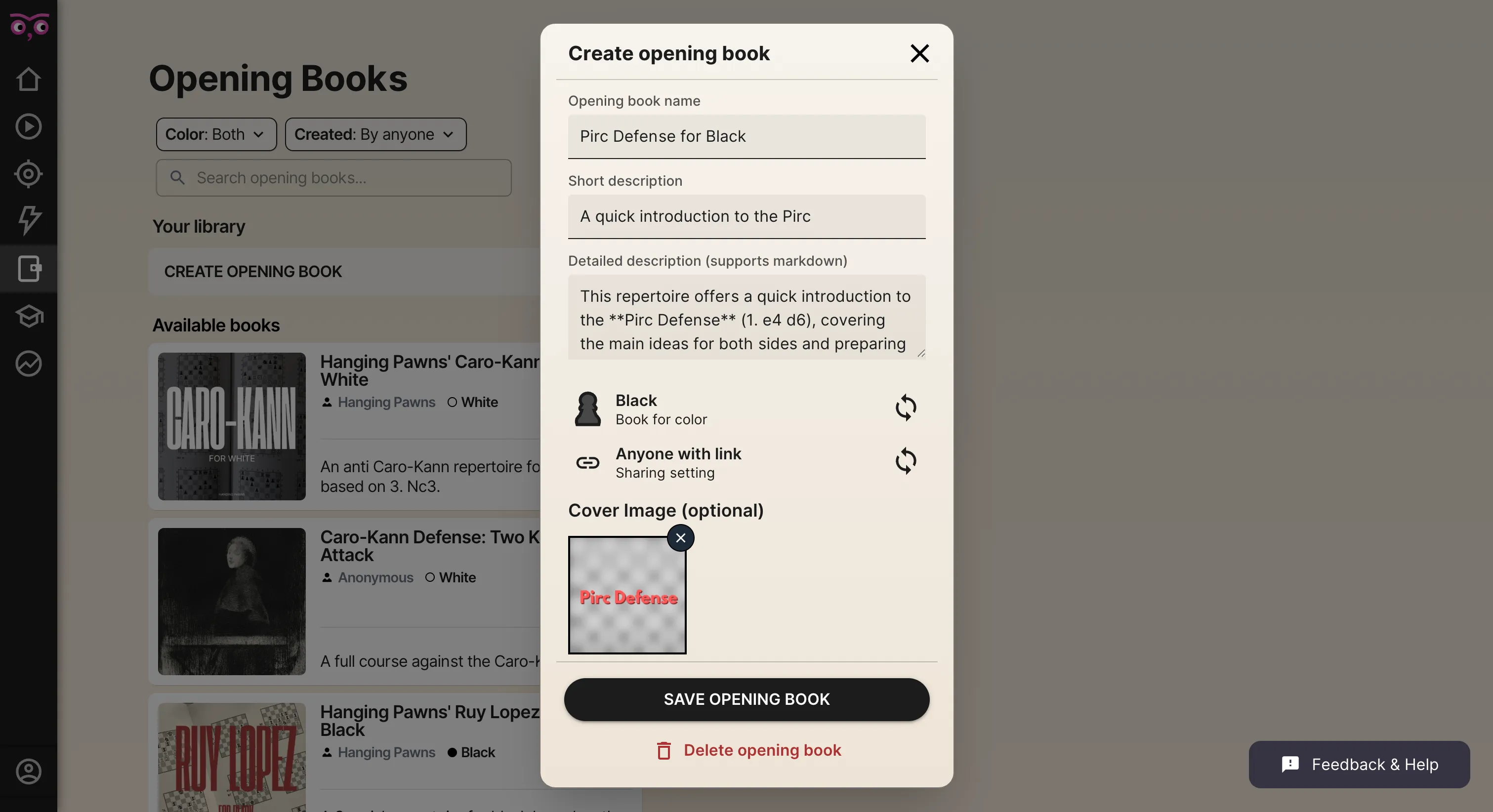
Fill in the details for your opening book. Descriptions are optional but useful if you plan to share your repertoire or have a growing library.
Make sure to set the color to match whether you are playing as White or Black.
Sharing settings
- Anyone with link: other users can access your opening book via the URL
- Private: only you can see the opening book
Upload a cover image if you want (optional).
Step 4: Bookmarks (optional)
Bookmarks let you target specific variations in your opening book, which is great for drilling individual lines.
To create one, press the ”+” sign next to a move to see branching points, click the move you want to bookmark, name it, and save. Repeat for as many variations as you need.
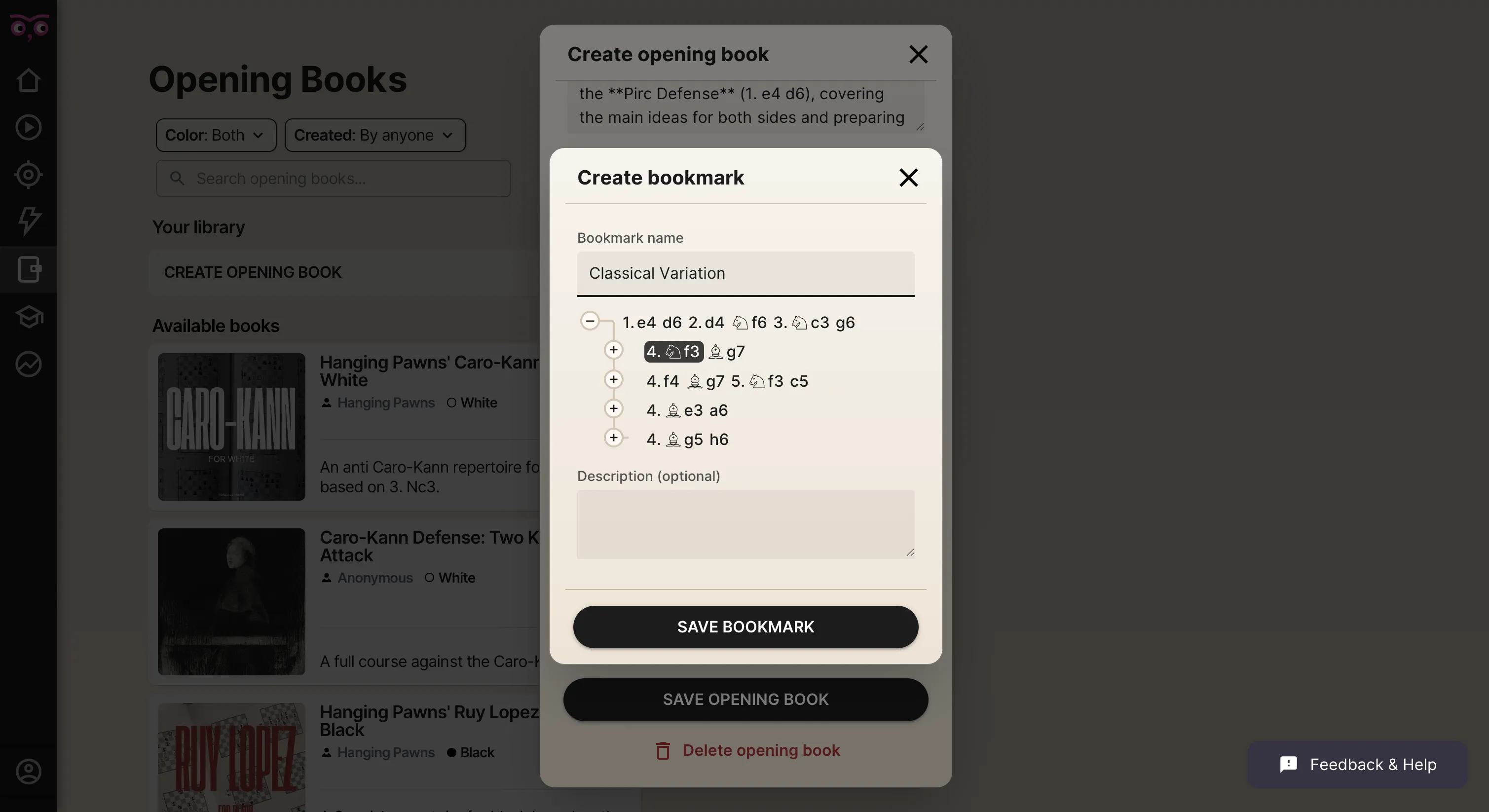
Tip: Bookmarks work best for marking the opponent’s key choices. In the example, a bookmark is created for each of White’s variations at move 4.
Step 5: Start Training
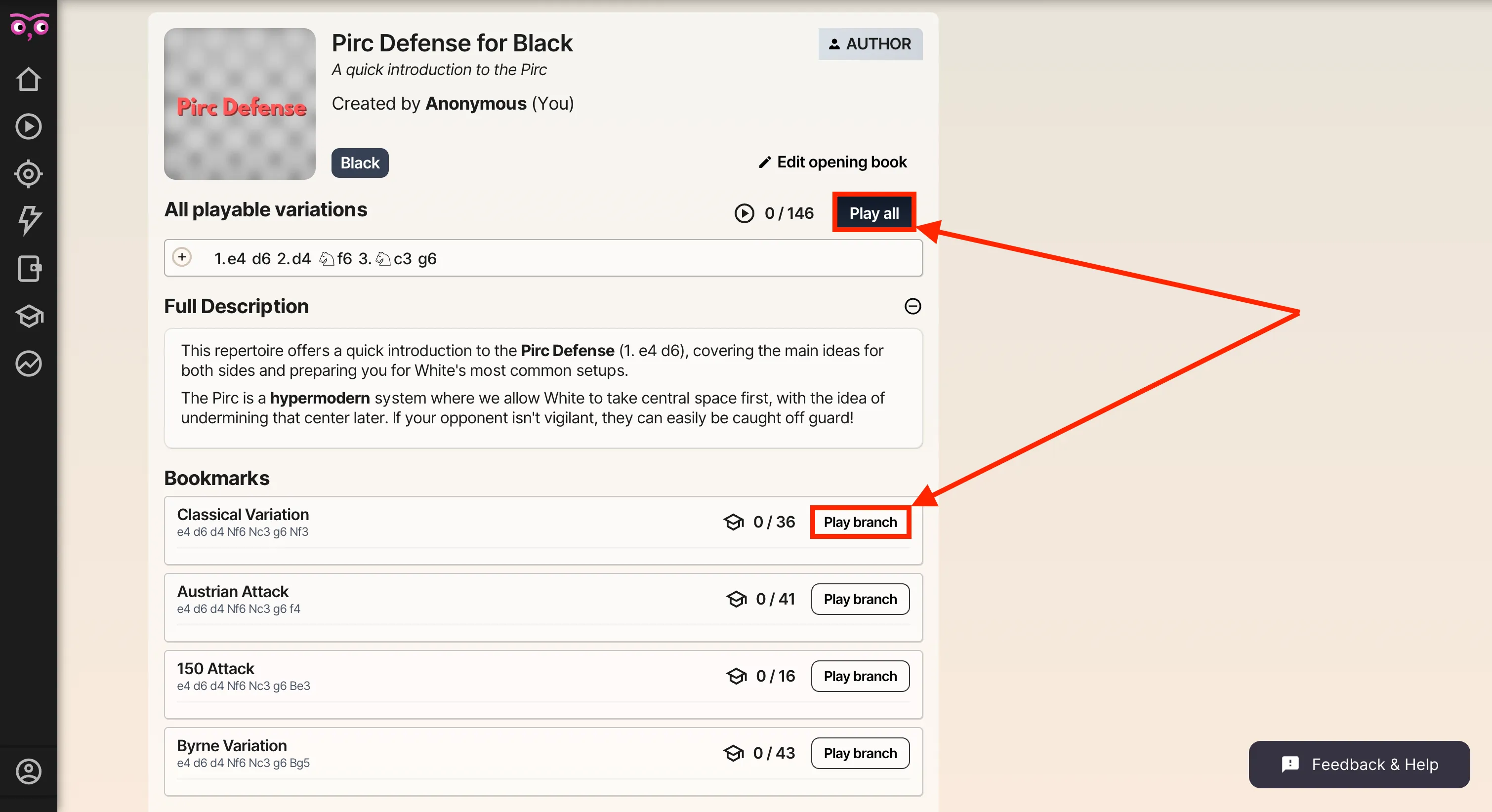
Click your opening book to open its dedicated page. Here you’ll see the details and bookmarks, along with how many positions the book contains (146 here) and how many you’ve encountered so far (0 here).
Press “Play branch” to target a specific variation or hit “Play all” to start training the whole opening book.
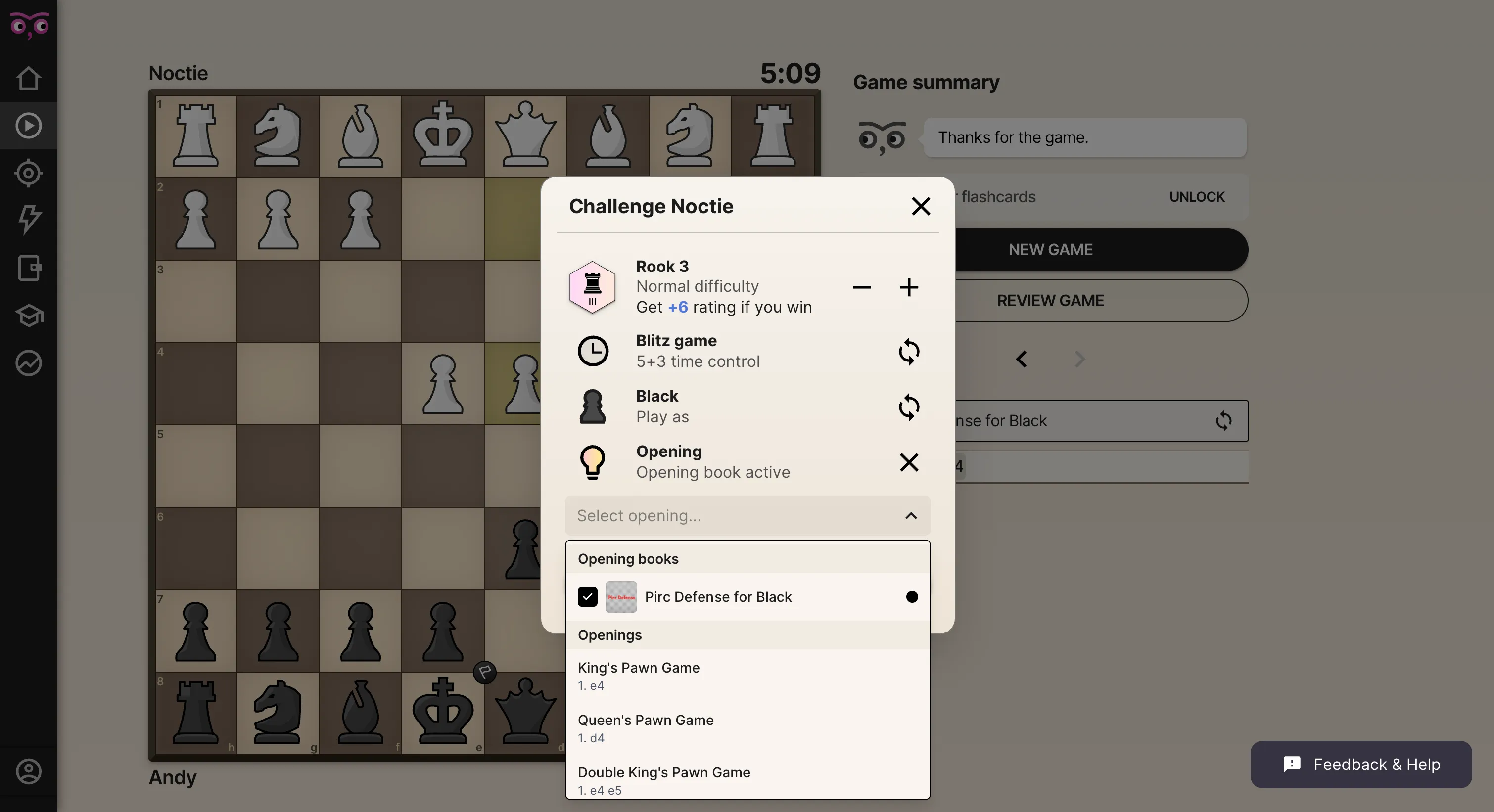
You can also start an opening training session from the Home screen. Press “PLAY CHESS” and in the new-game dialog, press “Select opening…” and pick the opening book you want to train.
Happy training!
Need help? Reach out to support@noctie.ai or drop a message in our Discord server!